
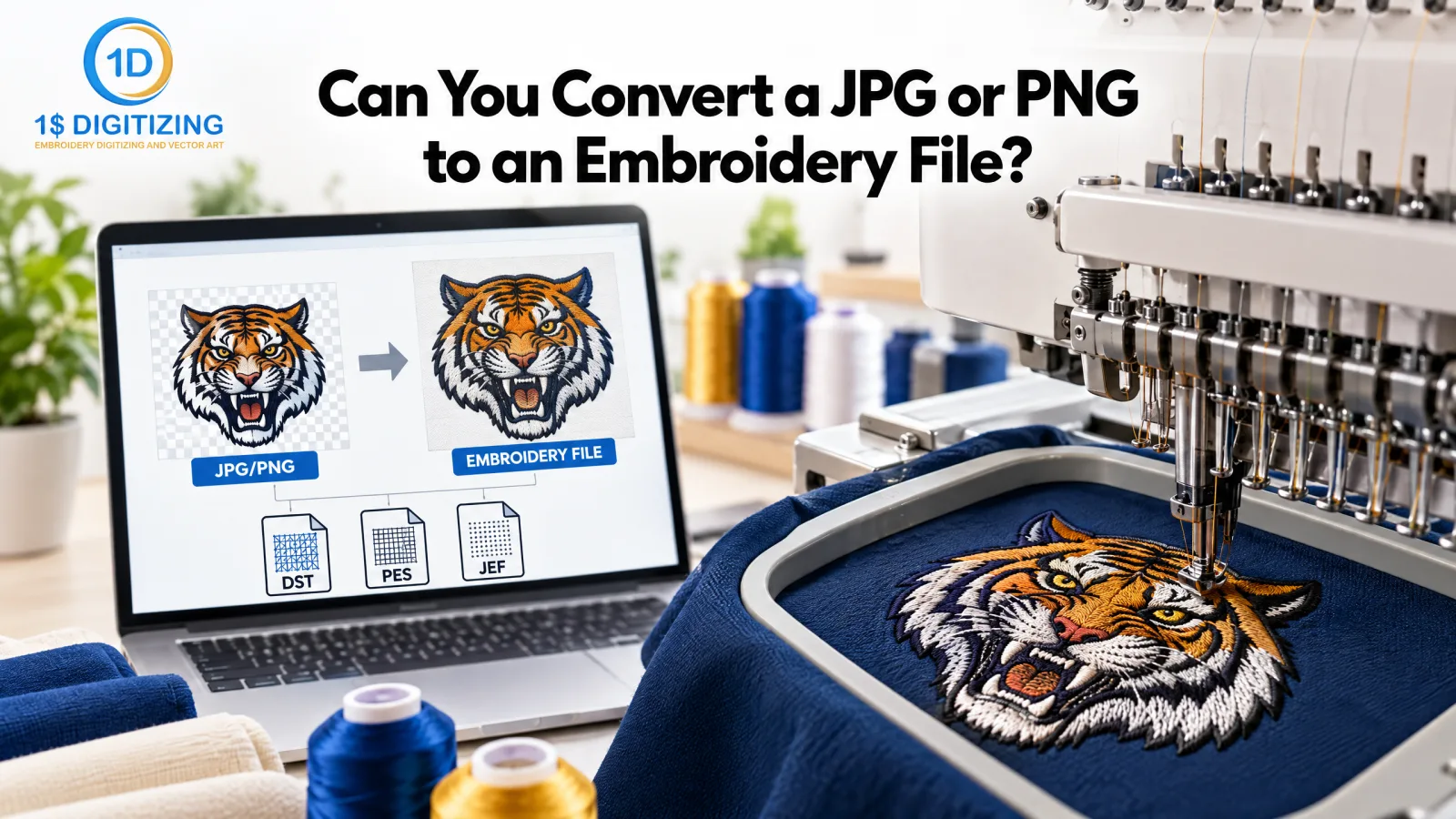
Can You Convert a JPG or PNG to an Embroidery File?
No, not with a regular converter. If you want to convert a JPG to an embroidery file, the image has to be digitized first. That means someone (or some software) rebuilds the artwork as stitches: fills, satin borders, run lines. A file converter can’t do that. All it does is swap one stitch format for another, like PES to DST.
We digitize artwork at 1dollardigitizing.com, and this is probably the most common mix-up we see. People upload a logo to a converter, get an error or a useless file, and wonder what went wrong. Nothing went wrong. They just used the wrong tool.
Why a JPG or PNG Isn’t an Embroidery File
A JPG is a grid of colored dots. Your embroidery machine has no idea what to do with that. It needs instructions: where the needle goes, which way to sew, what kind of stitch to use, when to change thread, when to trim.
Formats like DST, PES, JEF and EXP hold exactly that kind of information. They’re sewing instructions, not pictures. So turning a JPG into one of them isn’t a conversion. Someone has to create those instructions from scratch, and that’s a design job.
How to Convert a JPG to an Embroidery File (and Why a Simple Converter Won’t Work)
You’ve got three real options.
Digitize it by hand. A digitizer traces your artwork in embroidery software and picks the stitch types, direction, density and underlay. It takes time, but it gives the cleanest result, especially for logos, small text and anything detailed.
Use auto-digitizing software. Some programs will generate stitches from an image with one click. It can be fine for bold, simple shapes. On thin lines, small lettering or gradients, though, the result is usually messy, and you’ll end up fixing it by hand anyway.
Send it to a digitizing service. You send the image, and you get back a file that’s ready to sew in the format your machine uses. If that’s what you’re after, here’s our embroidery digitizing service.
How to Convert JPG to DST
DST is the Tajima format, and it’s the one most commercial machines run on. You can’t save a JPG as DST directly, because there are no stitches in a JPG to save.
What you do is this: start with the best version of your artwork you have, digitize it, and export the finished design as DST. Then do a test sew on the fabric you’ll actually use. Don’t skip that last part. A design that looks great on screen can behave very differently on a stretchy polo or a stiff cap.
If you already have a stitch file in another format, like PES or JEF, that’s a different story. You can change it to DST with our free embroidery file converter. It works because the stitch data already exists.
How to Convert JPG to PES
PES is what Brother and Babylock machines use. The rule is the same as for DST: digitize the JPG first, then save it as PES. If you drop a JPG into a “JPG to PES converter”, you’ll either get nothing or a file that sews out as a blob.
If your digitizer works in a different format, just ask for PES when you order. It’s easier than converting later.
What Is Digitizing?
Digitizing is the process of turning artwork into a stitch file. The person doing it makes a lot of small decisions that you never see in the final design, but you’d notice if they were wrong:
- Which stitch type goes where. Satin for borders and lettering, fill for large areas, run stitches for fine lines.
- How dense the stitches are and which direction they run.
- What underlay to use so the design sits flat and doesn’t pucker.
- The order the colors sew in, which affects both quality and run time.
- How much to compensate for fabric pull.
This is why two files made from the same JPG can look completely different once they’re sewn.
Converter vs. Digitizing
File converter
Digitizing
You start with
An embroidery file (PES, DST, JEF)
A JPG, PNG or other artwork
You end up with
The same design in a different format
A brand new stitch file
Creates stitches?
No
Yes
Use it when
Your machine needs a different format
All you have is an image
Getting Better Results from Your JPG or PNG
A few things make a real difference to how your design turns out:
- Send the biggest, sharpest version you have. Small or blurry images lose detail fast.
- If you’ve got the original logo file (AI, EPS or SVG), send that instead. It’s always better than a screenshot.
- Keep the color count low. Fewer colors usually means cleaner stitching.
- Tell the digitizer the size, the fabric and where it’s going (left chest, cap front, jacket back).
- Be realistic about tiny text. Very small lettering just won’t sew cleanly, no matter who digitizes it.
Frequently Asked Questions
Can I convert a JPG to an embroidery file for free?
Not directly. Free converters only change one stitch format into another. A JPG has to be digitized first, either by you in embroidery software or by a digitizing service.
Can I convert a JPG to DST?
Yes, but you need to digitize the image first and then export it as DST. If you already have a PES or JEF file, you can use a free embroidery file converter to switch it to DST.
Can I convert a JPG to PES?
Same answer. Digitize first, then save as PES. A converter on its own can’t turn a JPG into a working PES file.
Can I convert a PNG to an embroidery file?
Yes. PNG works just like JPG. A PNG with a transparent background and clean edges is a bit easier to digitize, but it still has to be turned into stitches.
What’s the difference between a file converter and digitizing?
A converter changes a stitch file from one format to another. Digitizing creates the stitch file from artwork. If all you have is an image, digitizing is what you need.
Which image format is best for digitizing?
Vector files (AI, EPS, SVG) are best. If you only have a raster image, a high-resolution PNG or JPG with sharp edges will do.
Final Thoughts
You can turn a JPG or PNG into an embroidery file. You just can’t do it with a converter. Use a converter when you already have a stitch file and need a different format. Use digitizing when all you have is a picture.
If you want a file that’s ready to sew, get a quote and send us your artwork. And if you only need to change formats, the free converter will do it.
Working on this yourself? See the free embroidery file converter and custom embroidery digitizing.
Ready to digitize your design?
Professional embroidery digitizing from $1 — 24-hour turnaround, all machine formats, free revisions.