
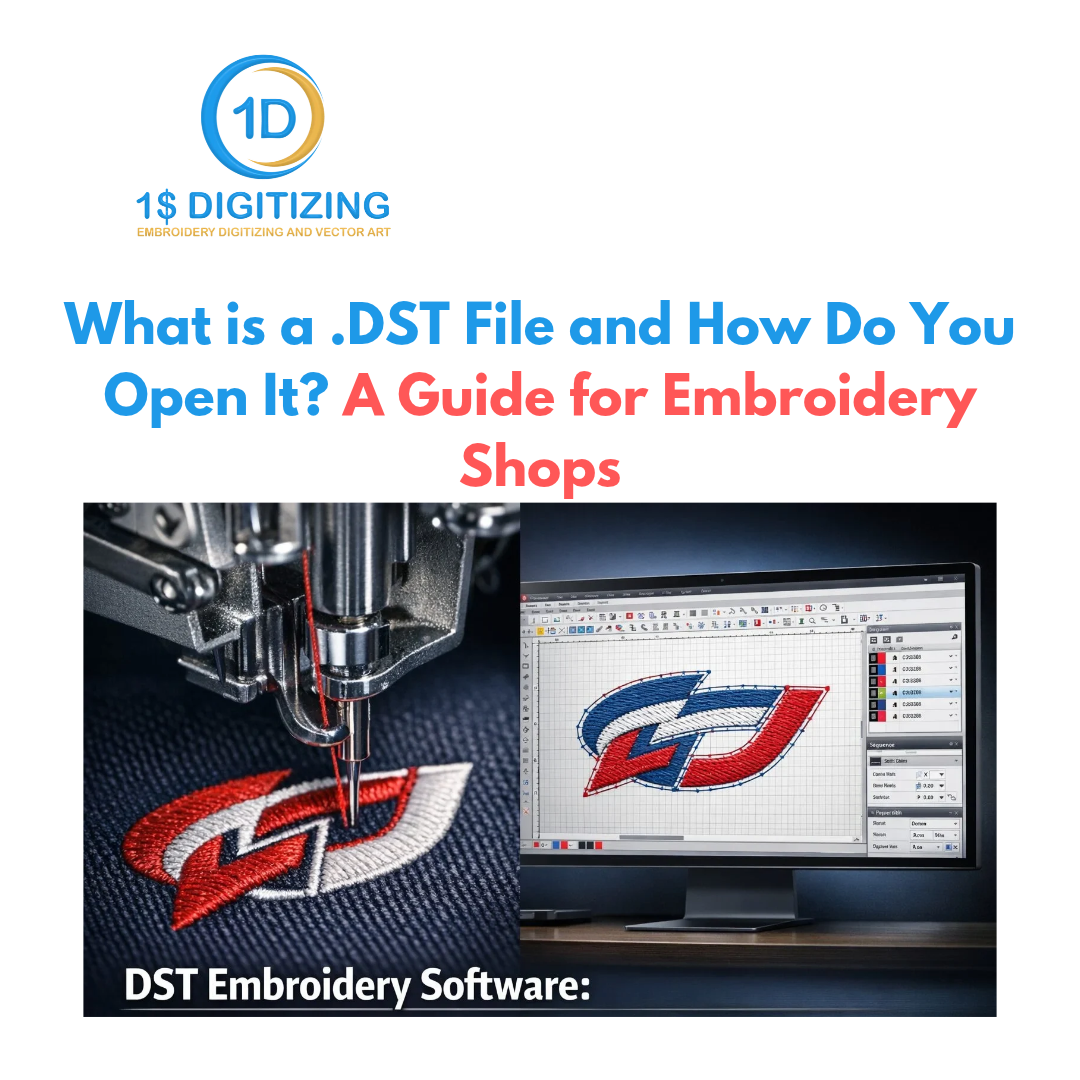
What is a .DST File and How Do You Open It? A Guide for Embroidery Shops
If you've been running an embroidery shop for more than a week, someone's already sent you a .DST file. Probably without explaining what it is. That's just how the industry works — the format has been around so long that most people treat it like electricity. It's there, it works, nobody explains it.
Here's what it actually is, how it works under the hood, and what you actually need to know to use it properly.
What is a .DST File?
DST stands for Data Stitch Tajima. Tajima is a Japanese embroidery machine manufacturer — one of the oldest in the business — and they created this format back when commercial embroidery was still figuring itself out. The format stuck because Tajima machines ended up in factories everywhere. Not because it's technically superior to anything. Just because those machines were everywhere first.
Think of it the same way you'd think about MP3. Not the best audio format ever made. Definitely not the most flexible. But it's on every device, every platform, every piece of software — because it got there first and stayed.
That's .DST. Brother machines read it. Barudan reads it. ZSK, Melco, SWF — practically every commercial machine you'll encounter in a real shop reads .DST without complaint. Even if the manufacturer has their own native format they'd prefer you to use, they'll still support DST because they have to.
How the File Actually Works
Most embroiderers never need to know this. But if you ever want to troubleshoot a bad file or understand why certain things go wrong at the machine, this is the part that matters.
A .DST file doesn't store your design the way a Photoshop file stores an image — as layers, objects, shapes you can go back and edit. It stores the design as a list of physical movements. Every single stitch, laid out in sequence, with the exact X and Y coordinates of each needle penetration.
The machine reads this list top to bottom and executes each command in order. Those commands are basically just five things:
- Stitch — go to these coordinates, push the needle down
- Jump — move to these coordinates without stitching
- Trim — cut the thread
- Color change — stop, wait for the operator to swap thread
- End — done
That's the whole language. Five commands. The machine doesn't know what color anything is supposed to be. It doesn't know you call this element "the leaf on the left." It just knows: go here, stitch, go there, trim, wait for color change.
This is both why .DST is so universally compatible and why it's so limited.
The Limitations Nobody Mentions When They Send You the File
No color information whatsoever. This is the one that catches new shop owners off guard. Open a .DST file in any software and it'll show you colors — but those are colors your software made up based on its own default palette. The file itself has no idea what colors the design is supposed to be. Just color change commands, with no data attached about what comes next.
This is why a good digitizer always sends a separate color sequence document alongside the .DST file. If yours doesn't, ask for one. It should tell you exactly which thread color goes in which position, ideally with a thread brand and reference code.
You can't really edit it. Not structurally, anyway. You can resize a .DST file within a limited range, reposition it, maybe adjust some basic settings. But if you want to change a satin column to a fill, or repath how the machine moves through the design, you need the original native file from whatever software was used to digitize it. The .DST is the output. The source is gone unless your digitizer saved it.
No metadata at all. The file doesn't know who designed it, what it's called, who ordered it, or what garment it's for. It's completely anonymous. Just coordinates and commands.
0.1mm precision limit. Each coordinate in a .DST file moves in 0.1mm increments. For 99% of commercial embroidery work, this is completely fine. It only becomes a consideration for extremely fine detail work where stitch position rounding might be visible.
How to Open a .DST File
If you just need to look at it
Embird is the go-to. The free viewer version is genuinely good — you get a clean stitch simulation, can see the color sequence, zoom in on specific areas. It won't let you edit anything in the free version, but for reviewing a file before it goes to the machine, it's more than enough.
SewWhat-Pro is another solid option if you want something slightly more capable at a low price point. And Ink/Stitch — a free plugin for Inkscape — works if you're comfortable with open-source tools and don't mind a learning curve.
If you need to make changes
You need proper embroidery software. The options that actually get used in professional shops:
- Wilcom EmbroideryStudio — the industry standard, expensive, but genuinely the best
- Hatch by Wilcom — more accessible price point, same core technology
- Brother PE-Design — solid if your shop runs mostly Brother machines
- Tajima DG/ML by Pulse — professional grade, used in high-volume commercial operations
One thing worth understanding: even in these programs, editing a .DST file is working with expanded stitch data. You're not editing objects. You're moving stitches around. Real structural edits require the source file — the .EMB, .HUS, or whatever native format the original digitizer worked in.
Sending it directly to your machine
USB drive, load it, run it. Most commercial machines handle this without any fuss. The machine will stop at each color change command and wait for you to swap thread. That's it.
DST vs. Everything Else
When you're ordering digitizing, you'll often get asked what format you want. Here's the honest breakdown:
Format Brand Color Data Best For DST Tajima No Commercial machines everywhere — the safe default PES Brother Yes Brother machines, home and commercial JEF Janome Yes Janome machines only EXP Melco / Barudan No Melco machines, similar structure to DST VP3 Viking / Pfaff Yes Home machines, some object data retained EMB Wilcom Full Native editable format — what digitizers work in
If you run commercial machines and you're outsourcing your digitizing, just request DST. It'll work. If you run a specific brand of home machine and want color data stored in the file itself, ask for that brand's native format alongside DST so you have both.
The Format Is Not the Point
Here's the thing most people ordering digitizing services miss: the file format doesn't determine your stitch quality. At all.
A terrible .DST file will stitch out terribly. A well-digitized .DST will sew out cleanly and look sharp. The format is just a box. What matters is what the digitizer put inside it — the stitch paths, the underlay decisions, the density, the sequencing, how they handled pull compensation on each element.
Auto-digitizing software can spit out a .DST file in about thirty seconds. It'll be a valid file. Your machine will run it. And the result will look like someone traced your logo with a nervous hand. Too many trims, poor coverage, stitch paths that fight each other.
Real digitizing takes time because someone's actually making decisions about how to construct the design for fabric. That's where the difference shows up — not in which format the file gets exported to.
What to Tell Your Digitizer When You Order
The more context you give, the better the file you'll get back. At minimum, include:
- Your machine brand — even though DST is universal, it helps the digitizer dial in default settings appropriately
- Size and placement — a 3-inch left chest logo is digitized completely differently from a 12-inch jacket back. Same artwork, very different files
- What you're sewing on — fleece, twill, pique polo, and stretchy fabric all need different density and underlay settings baked into the stitch file
- Thread colors — Pantone codes, thread brand references, or even just a clear description helps your digitizer build an accurate color sequence sheet
- When you need it — most professional shops deliver standard orders within 24 hours, rush is usually available if you communicate early
When Things Go Wrong at the Machine
Colors are totally off when you open the file in software. Normal. Expected. The file doesn't store color. Your software just filled in defaults. Get the color sequence sheet from your digitizer and match thread to that instead.
Design doesn't look right in simulation. Run the stitch simulation in your embroidery software before you put it on the machine. If the structure looks wrong — elements missing, shapes not forming correctly — go back to your digitizer. That's a digitizing issue, not a format issue.
Machine won't load the file at all. Some home machines only read their own brand's format. .DST says it's universal but there are a handful of machines that don't support it natively. Ask your digitizer for the machine-specific format instead.
Lots of jump threads everywhere in the finished piece. Not a .DST problem. The digitizer didn't sequence the stitch path efficiently. Those jumps happen when the machine has to skip around the design instead of moving through it in a logical order. That's a revision conversation with whoever digitized the file.
Bottom Line
DST isn't going anywhere. It's been the backbone of commercial embroidery for forty-plus years and it'll be around for a long time yet — not because it's the most sophisticated format out there, but because every machine reads it and everyone expects it.
Know its limitations. Get the color sequence sheet. Don't expect to make structural edits without the source file. And remember that the quality of what's inside a .DST file has everything to do with who digitized it and nothing to do with the format itself.
If the stitch-out isn't right, the conversation starts with the digitizer — not the file extension.
Need a clean .DST file that actually sews out the way it's supposed to? Get a quote from 1 Dollar Digitizing — from $1, delivered within 24 hours, every major format included.
Working on this yourself? See embroidery file formats and custom embroidery digitizing.
Ready to digitize your design?
Professional embroidery digitizing from $1 — 24-hour turnaround, all machine formats, free revisions.